Connect & Chat with HiTok

All-in-one app for messaging, payments and affordable internet services in your community

Download Now:

Everything You Need in One App

HiTok combines essential services to simplify your digital life

HiTok Messaging

Real-Time Messaging

Connect instantly with friends and family through our fast and reliable messaging platform.
  • Instant text messaging
  • Photo and video sharing
  • Group chats
  • Voice messaging
See Tutorials
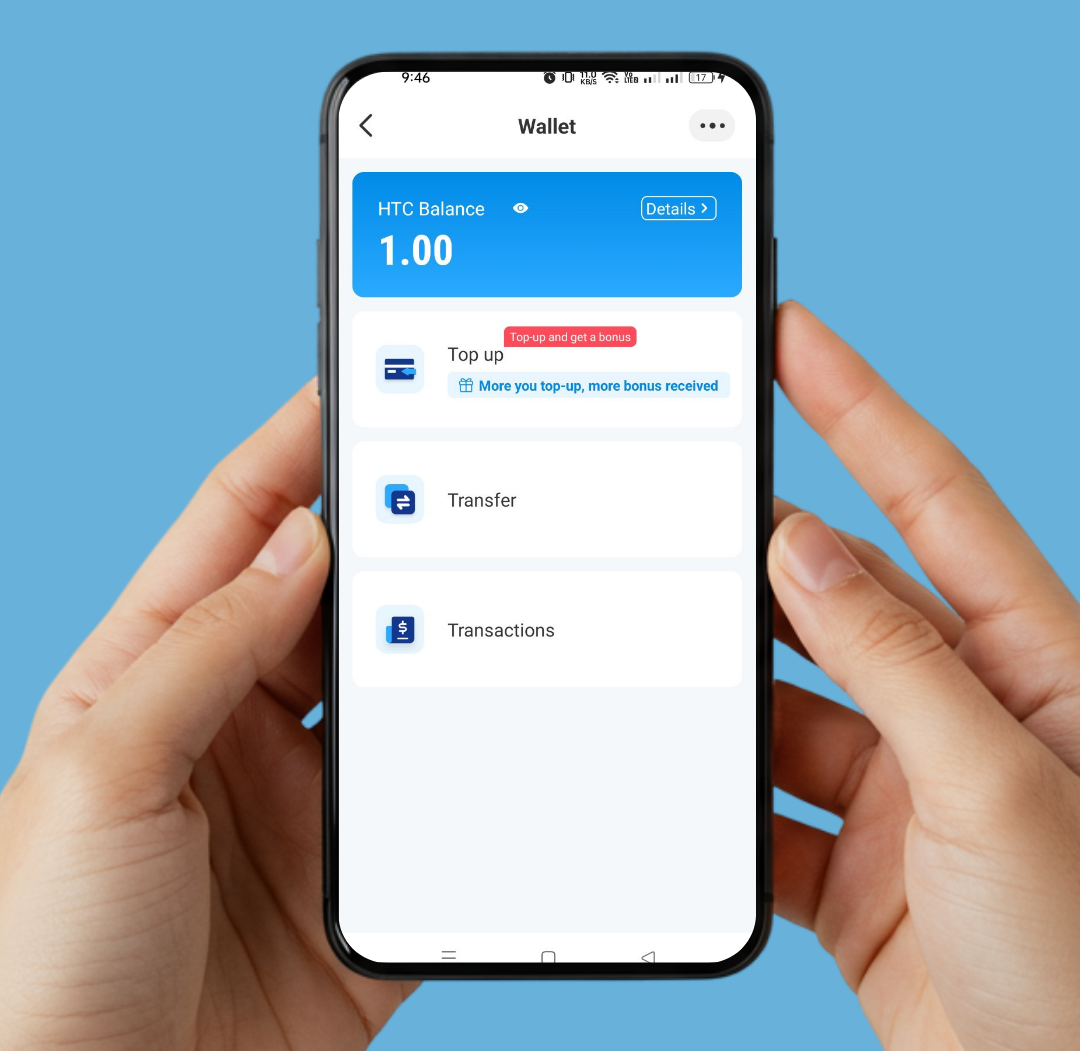
HiTok Wallet

HTC E-Wallet

Secure digital wallet for all your payment needs with HiTok Coin (HTC).
  • Fast and secure transactions
  • GCash & Fast Top up
  • Peer-to-peer transfers
  • Purchase internet packages
See Tutorials
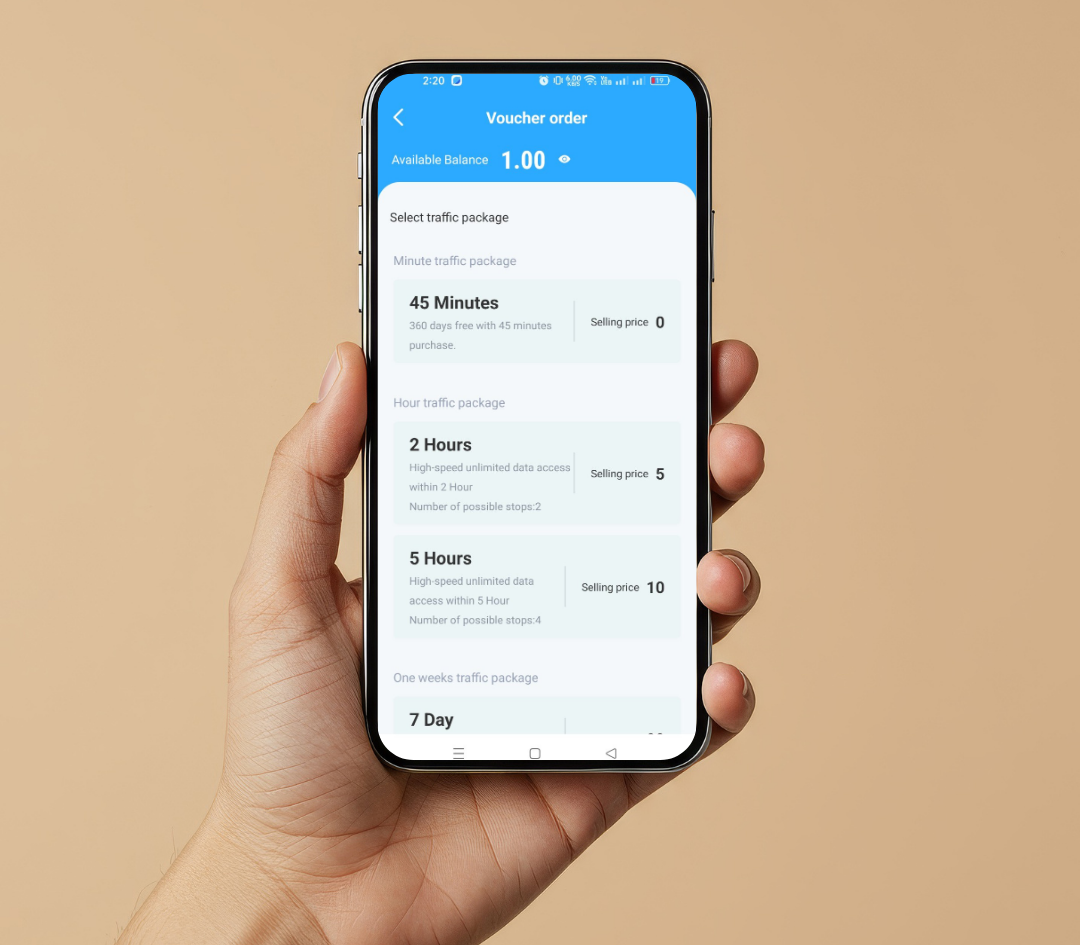
HiTok Internet

Affordable Internet

Get connected with our community-based HiWiFi network at unbeatable prices.
  • Barangay-wide coverage
  • Flexible packages from 2 hours to 1 month
  • Pause feature to save your time
  • Free 45 minutes daily
See Tutorials
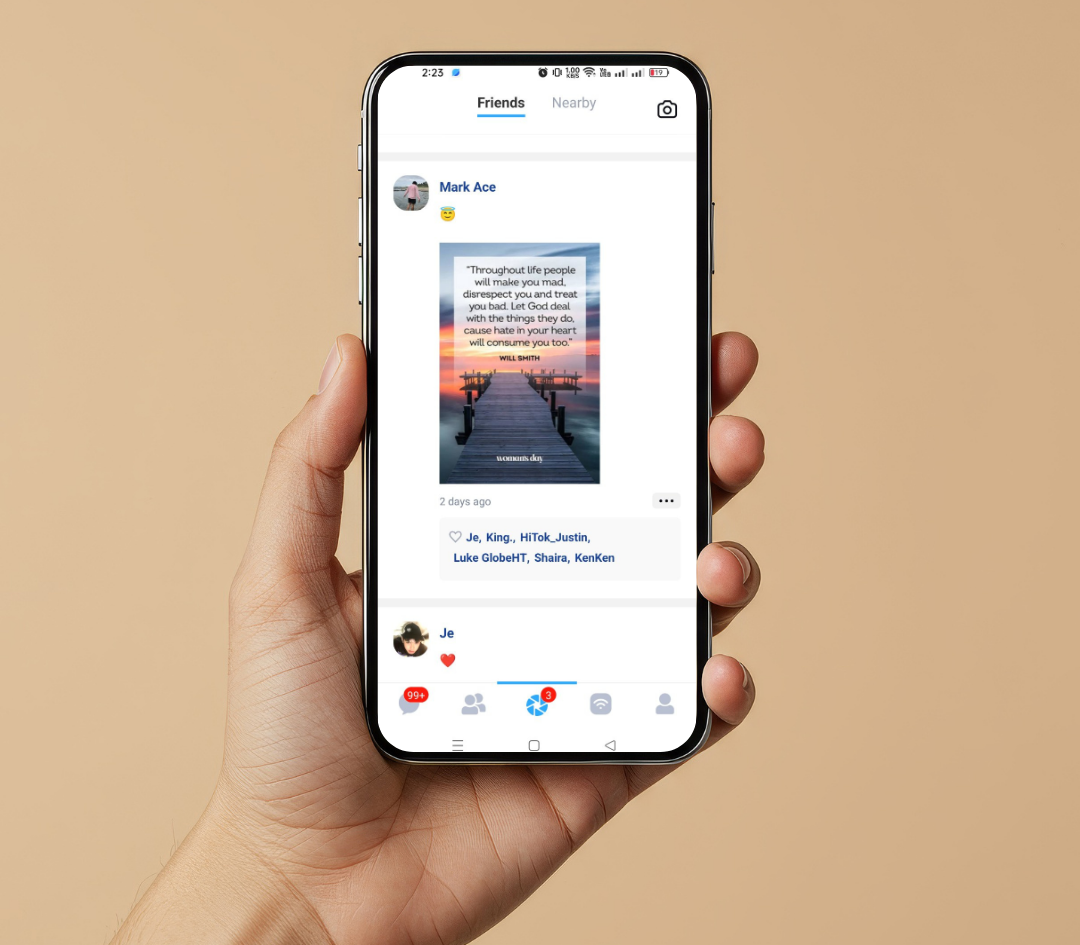
HiTok Moments

Share Your Moments

Capture and share your life with friends through HiTok Moments.

  • Post photos and videos
  • Engage with friends' posts
  • Create community events
  • Share updates with your network
See Tutorials

User Reviews

What our users say about HiTok

Frequently Asked Questions

Find quick answers to common questions

You can download the HiTok app from:

Playstore (For Android Users)

  1. Open your Google Playstore
  2. Search for HiTok
  3. Click The HiTok Logo
  4. Click Install

Appstore (For iOS or Apple User)

Directlink (For devices connected to HiWiFi Networks)

  1. Open your HiTok application
  2. Click the "Go in" button
  3. Enter your desired nickname
  4. (Optional) Enter your recommendation code
  5. Bind your Phone number or email address
  1. Open your HiTok application
  2. Click the - button
  3. Select to log in via Phone Number or Email Address
  4. Enter your Phone Number or Email Address
  5. Enter your Password
  1. Open and Log-in your HiTok Application
  2. Click the Profile Icon at the bottom corner
  3. Click on Settings
  4. Click Account Security
  5. Click either Phone Number or Email Address
  6. Enter your details
  7. Click Send Verification Code
  8. Once Code is received, typed it in the verification bar
  9. Type in your Log-in Password
  10. Click Confirm
  1. Open and Log-in your HiTok Application
  2. Click the Profile Icon at the bottom corner
  3. Click on Settings
  4. Click Account Security
  5. Click Change Log-in Password
  6. Type in Original Password
  7. Type in new password and re-enter it
  8. Click Confirm
  1. Open and Log-in your HiTok Application
  2. Click the Profile button at the bottom corner
  3. Click your Name
  4. Click Dating Profile
  5. Click Edit button at the top corner
  6. Click the information you want to edit
  1. Open and Log-in your HiTok Application
  2. Click the Profile button at the bottom corner
  3. Click Settings
  4. Click Account Security
  5. Type in new nickname
  6. Click Save at the top corner
  1. Open and Log-in your HiTok Application
  2. Click the Profile button at the bottom corner
  3. Click Settings
  4. Click Account Security
  5. Click the three dots at the top corner
  6. Click Album and select desired photo
  7. Click Done

HTC or HiTok coin is the HiTok Application currency you can use in order to:

  1. Transfer Money
  2. Select a Traffic Data or Internet Package
  3. Purchasing and Transaction
  1. Open and Log-in your HiTok Application
  2. Click the Profile button at the bottom corner
  3. Click Wallet
  4. Click Top up
  5. Type in or select the amount you want to top up
  6. Click Confirm
  7. Save the QR and pay at your G-cash
  8. Open your G-cash
  9. Click the QR at the bottom center
  10. Upload your HiTok recharge QR code
  11. Successful payment once receipt is confirmed!

Option 1

  1. Open and Log-in your HiTok Application
  2. Click the Profile button at the bottom corner
  3. Click Wallet
  4. Click Transfer
  5. Type your friend account number or bind mobile number
  6. Type in the amount you want to transfer
  7. Click Confirm

Option 2

  1. Open and Log-in your HiTok Application
  2. Click the Profile button at the bottom corner
  3. Click the QR Icon at the top corner
  4. Click Scan
  5. Scan the QR Code of your friend
  6. Click Transfer
  7. Type the amount of HTC you want to transfer
  8. Click Confirm
  • Gcash Topup
  • Fast Topup
  1. Refer a friend using your Referral Code or Referral Link
  2. Make sure Referred friend bind a Phone number or Email Address
  3. Open and Log-in your HiTok Application
  4. Click the Profile Icon at the bottom corner
  5. Click Points to see successful referral
  1. Open and Log-in your HiTok Application
  2. Click the Profile Icon at the bottom corner
  3. Click Points
  4. Click Point Conversion
  5. Enter the amount of Point you want to convert
  6. Click Confirm

Option 1

  1. Connect your device to the HiiWiFi Network
  2. Open and Log-in your HiTok Application
  3. Click the Popped up 45 minutes at the bottom center
  4. Click 45 Minutes
  5. Click Confirm
  6. Enjoy your free 45 minutes free access

Option 2

  1. Connect your device to the HiiWiFi Network
  2. Open and Log-in your HiTok Application
  3. Click the Traffic Data icon at the bottom center
  4. Click Voucher Order
  5. Click 45 Minutes
  6. Click Confirm
  7. Enjoy your free 45 minutes free access
Price (HTC) Package
5 HTC 2 Hours of Unlimited and Uninterrupted Internet Package
10 HTC 5 Hours of Unlimited and Uninterrupted Internet Package
99 HTC 1 Week of Unlimited and Uninterrupted Internet Package
299 HTC 1 Month of Unlimited and Uninterrupted Internet Package

Yes! You are guaranteed a number of pause time per packages that you avail.

Package Pause Time
5 HTC 2 Pause time
10 HTC 4 Pause time
99 HTC No Pause time
299 HTC No Pause time
  1. Open and Log-in your HiTok Application
  2. Click the Traffic Package Icon at the bottom center
  3. Click Enable/Disable
  1. Open and Log-in your HiTok Application
  2. Click the Traffic Package Icon at the bottom center
  3. Click Voucher Order
  4. Choose from the packages you want to avail
  5. Click Confirm
  1. Open and Log-in your HiTok Application
  2. Click the Traffic Package Icon at the bottom center
  3. View your History
  1. Open your Settings on your device
  2. Click Connection or Wifi
  3. Click or Long press HiWiFi
  4. Once you are at the HiWiFi portal, You have been successfully connected
  1. Open your Settings on your device
  2. Click Connection or Wifi
  3. Click or Long press HiWiFi
  4. Click Modify
  5. Click Privacy
  6. Click Device Mac Address and Save
  1. Open and Log-in your HiTok Application
  2. Click the Moment Icon at the bottom center
  3. Click Camera Icon at the top corner
  4. Select a Photo to post as moment
  5. (Optional) Write a description for your moment
  6. Click Publish to post
  1. Open and Log-in your HiTok Application
  2. Click the Moment Icon at the bottom center
  3. Click Camera Icon at the top corner
  4. Select a Photo to post as moment
  5. (Optional) Write a description for your moment
  6. Click the @ and select your friend
  7. Click Publish to post

Option 1

  1. Open and Log-in your HiTok Application
  2. Click the Contact Icon at the bottom center
  3. Click New Friends
  4. Type the Account or Bind Phone number
  5. Click Add friend

Option 2

  1. Open and Log-in your HiTok Application
  2. Click the Contact Icon at the bottom center
  3. Click New Friends
  4. Click Scan
  5. Scan your friends QR Code
  6. Click Add friend

HiTok Tutorials

Learn how to get the most out of HiTok


Get In Touch

We'd love to hear from you

Email Us

hiwifi@hi-seas.ph

Visit Us

Alabang, Muntinlupa Philippines

Send us a message